
The plugin for WordPress
Your site keeps your listing on Ovin up to date by itself: opening hours, phone and new pages. Free, and nothing about your visitors is sent to us.
Step 1
Install
In WordPress, go to Plugins → Add New Plugin and search for ‘Ovin’. Click Install Now, then Activate. You'll find the plugin under Settings → Ovin. On a Dutch, German or French site it's called Zoeken.ai, Suchen.ai or Rechercher.ai; it's the same plugin.
You need to be an administrator of the site, and the site needs to be on https.
Step 2
Connect
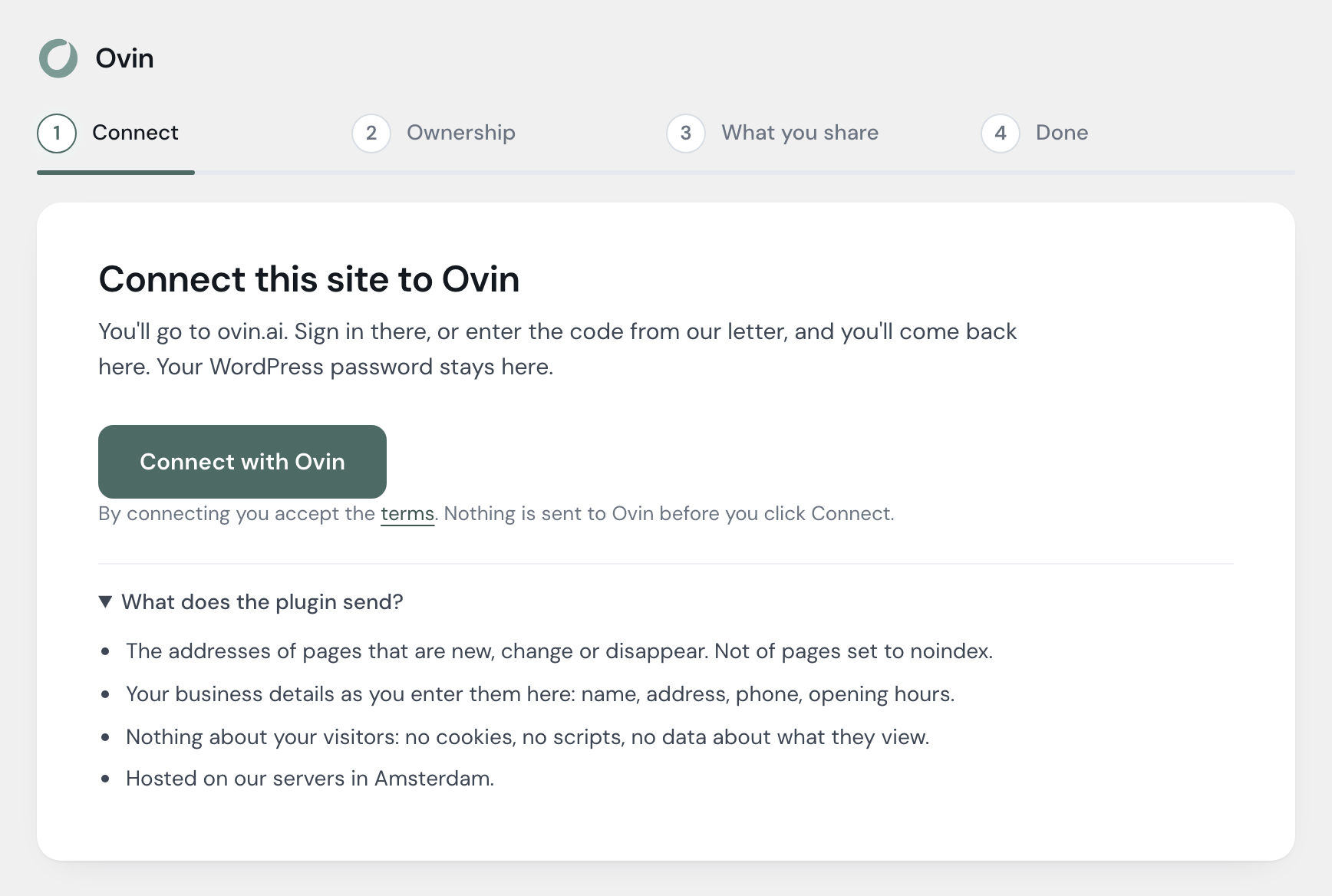
Click Connect with Ovin. You go to ovin.ai: sign in, or enter the code from our letter. There you see which site wants to connect, and to which business. Click Connect and you come back to WordPress by yourself. Your WordPress password stays on your site.
Step 3
Ownership: automatic
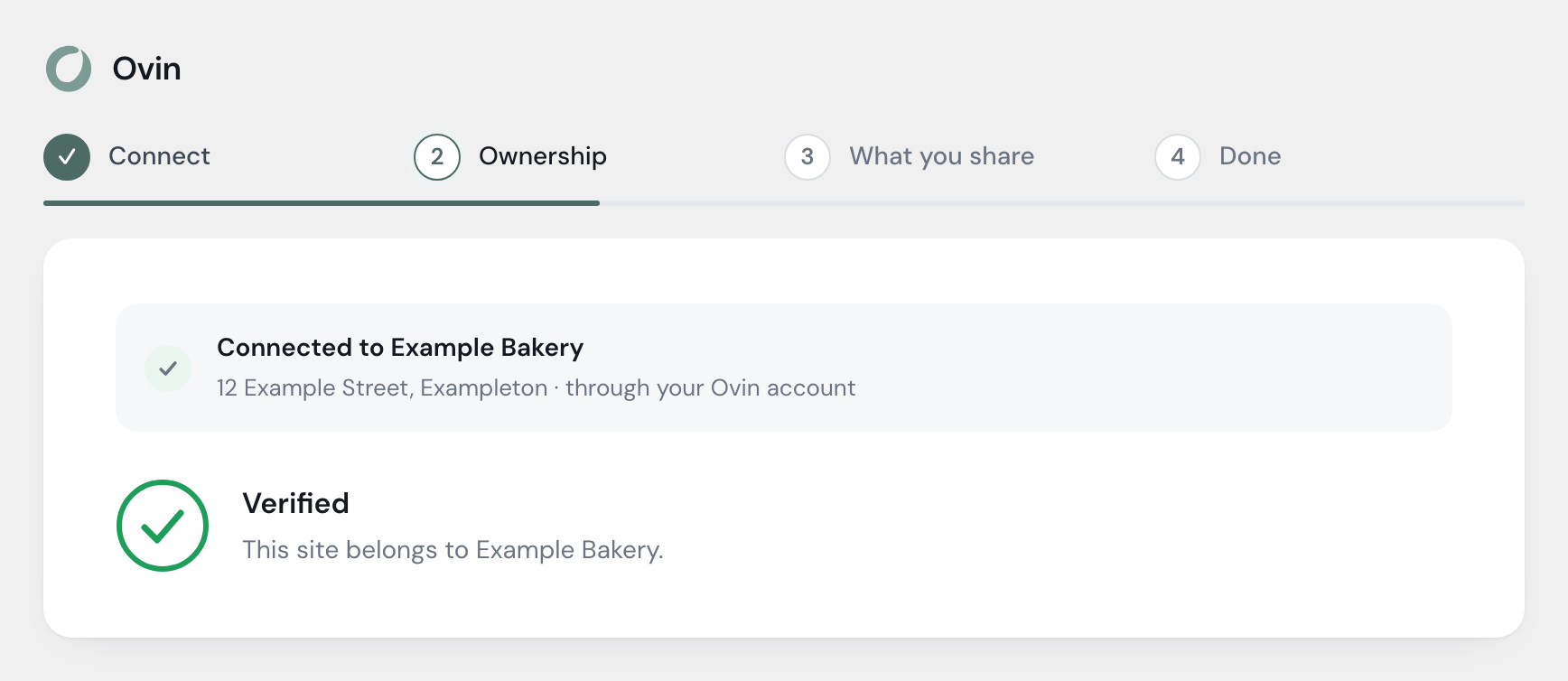
Ovin asks your site a question that only the plugin can answer. That's how we know the site is yours. You don't need to do anything; after a few seconds it moves on by itself.
Step 4
Choose what you share
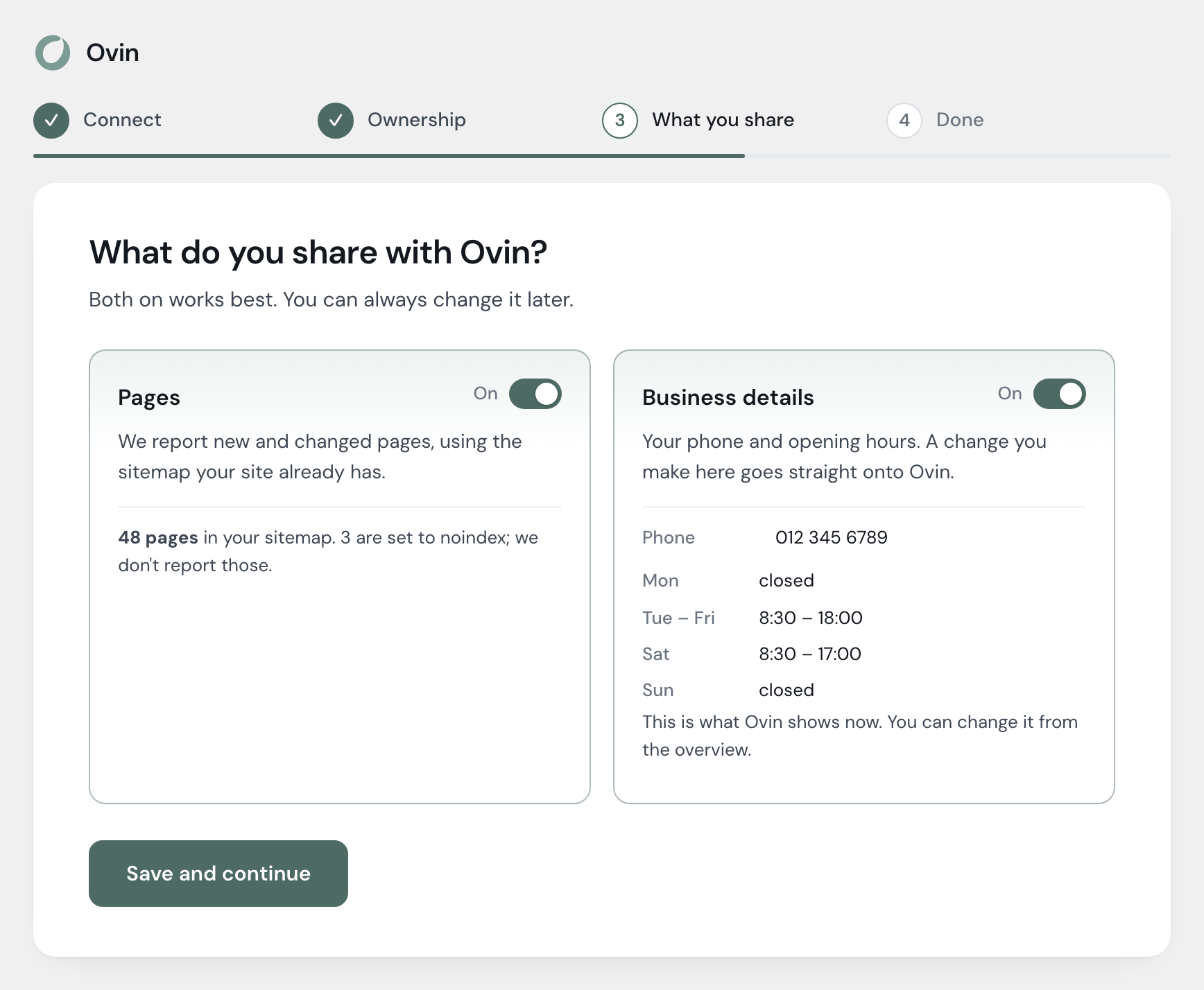
Pages: we hear about it as soon as you publish, change or remove something. We use the sitemap your site already has. Pages set to noindex are never reported.
Business details: your phone and opening hours. What you change in the plugin is on Ovin straight away. Both on works best.
Step 5
Done
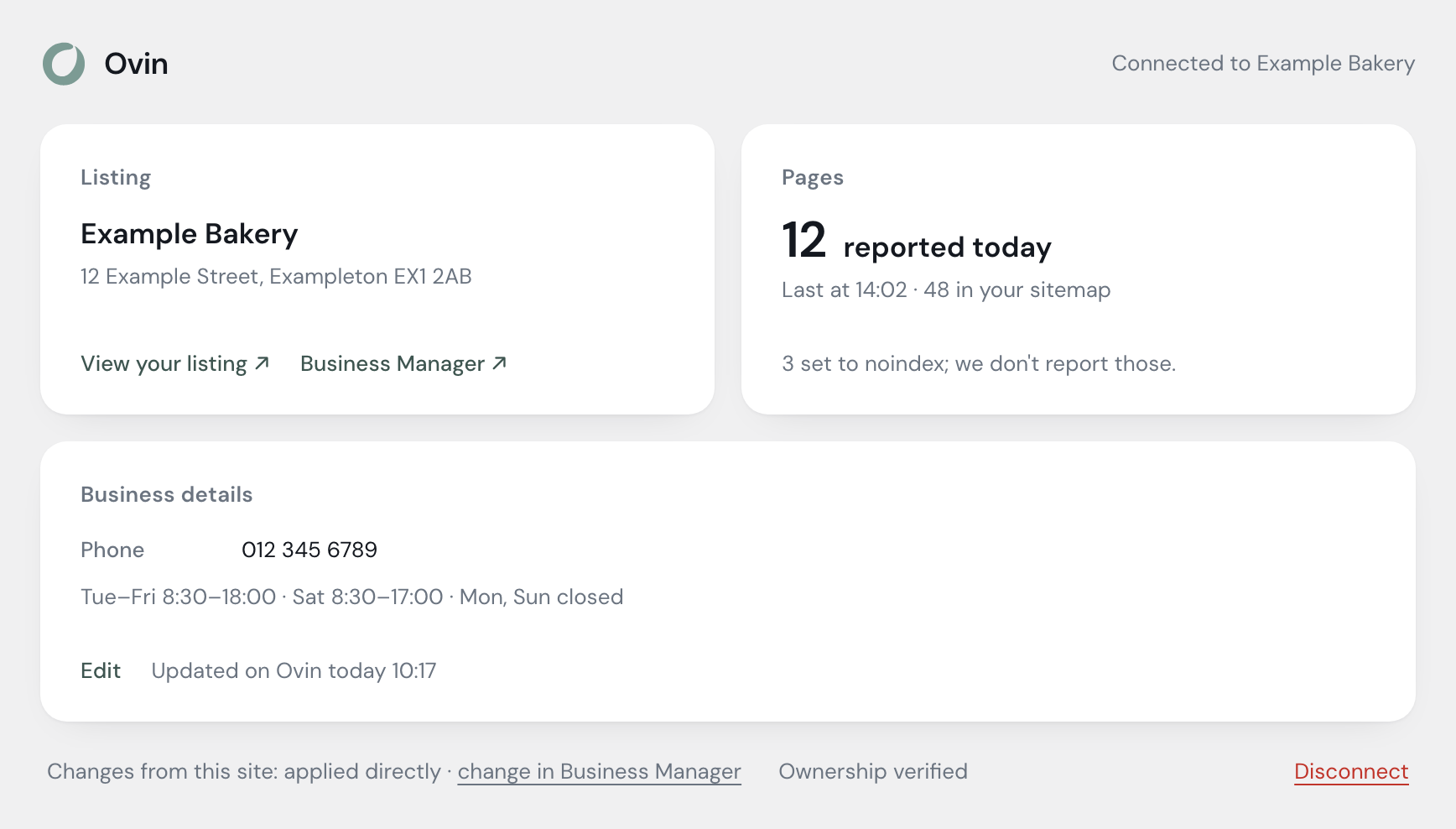
After that there's nothing more to do. The overview shows how your listing looks, how many pages were reported today, and when your details were last updated.
Change your opening hours
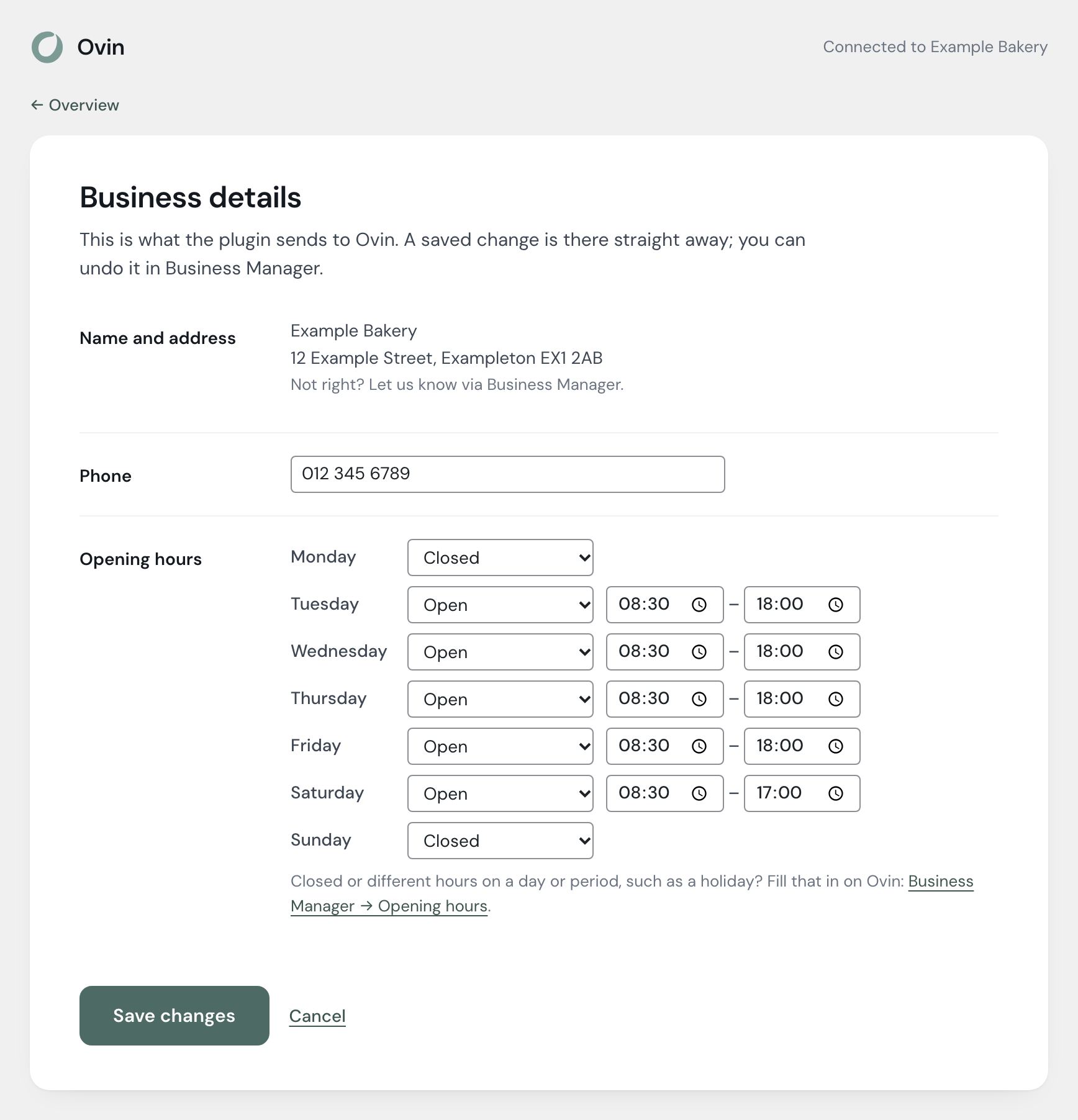
On the overview, click Edit under Business details. Change your phone or hours and click Save changes. It's on Ovin straight away. A day or period with different hours, such as a holiday, you enter in Business Manager.
In Business Manager
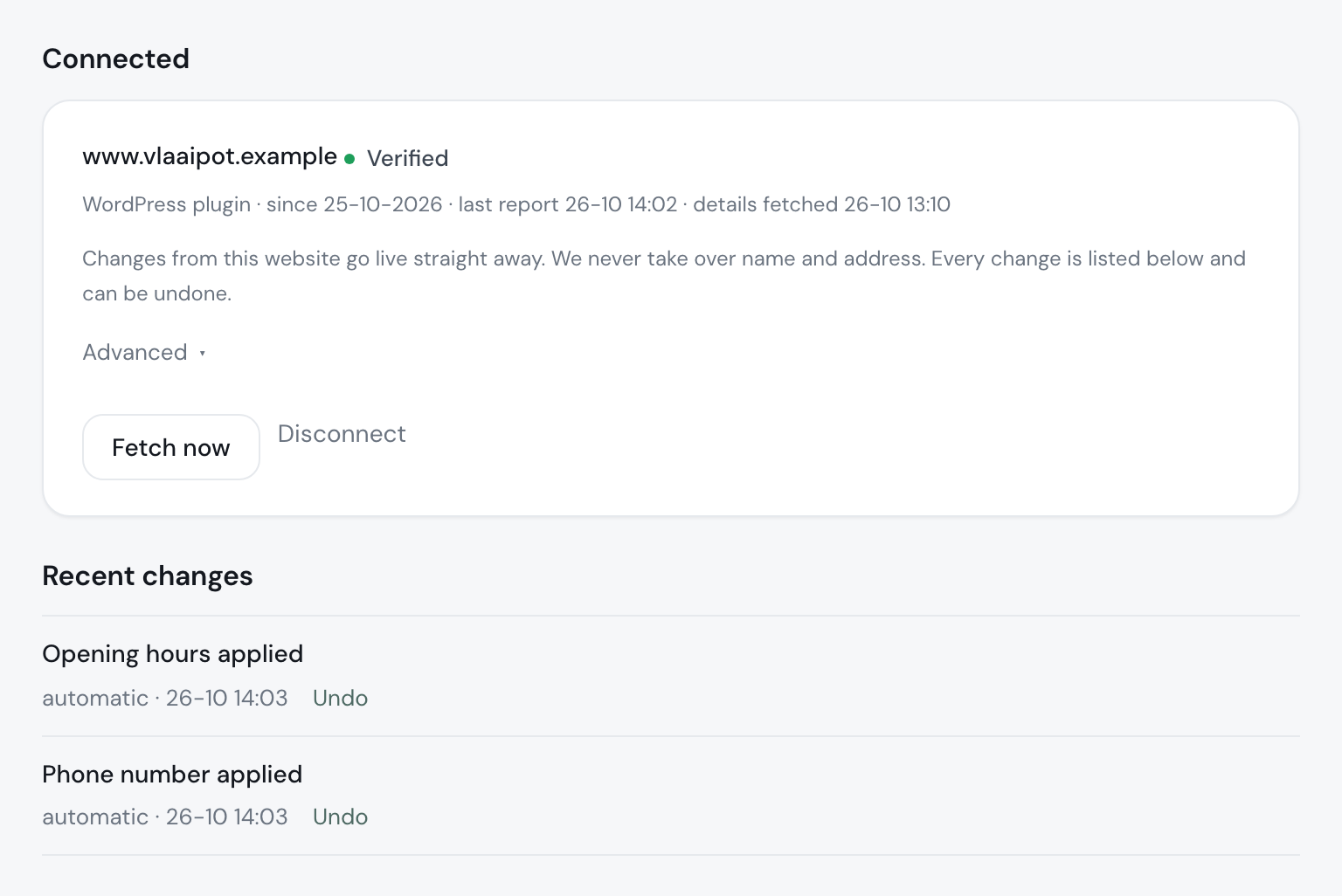
Under Business Manager → Websites you see the connected site and everything it changed. You can undo every change there. Would you rather approve changes yourself first? Then choose Ask first under Advanced.
Disconnect
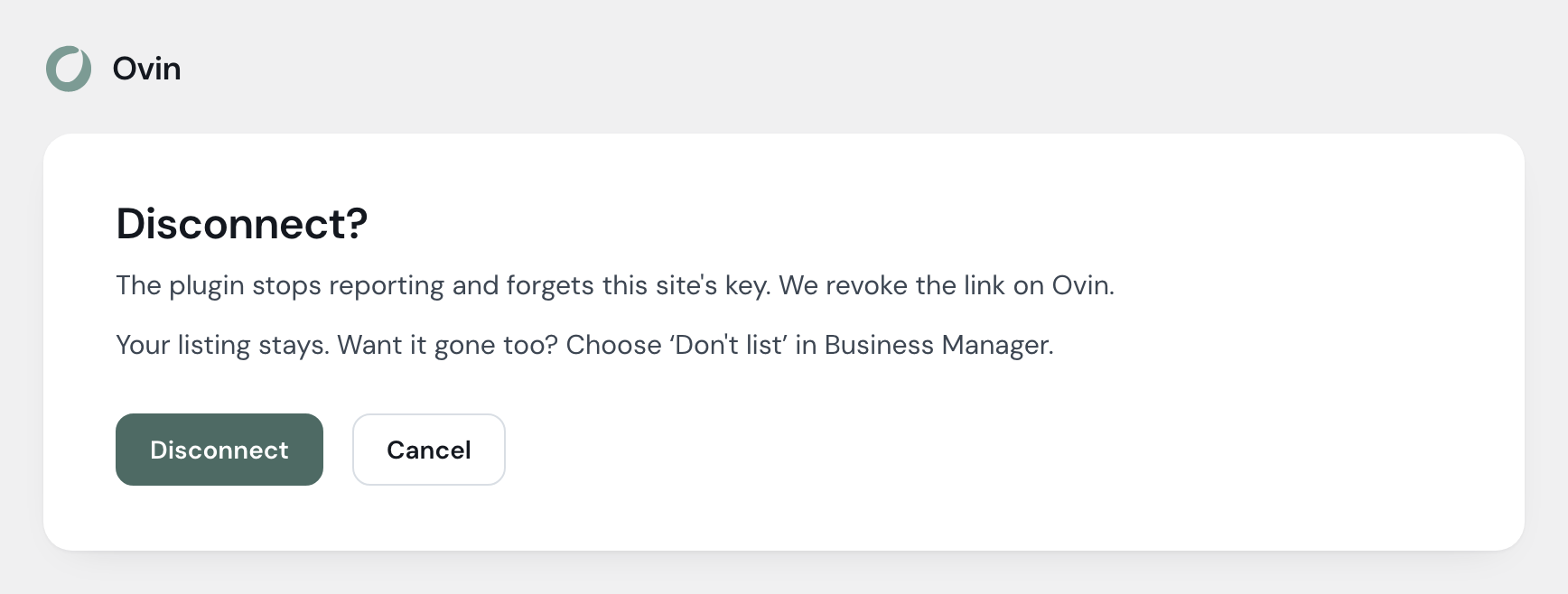
Below the overview, click Disconnect. The plugin stops reporting; on your own site we also revoke its key. Your listing stays. If you want it gone too, choose ‘Don't list’ in Business Manager.
Questions
Does it cost anything?
No. The plugin and your listing are free.
What exactly does the plugin send?
Only the addresses of pages that are new, changed or removed, and your business details as you enter them in the plugin. Never anything about your visitors: no cookies, no scripts, nothing on your pages. Everything is processed in the European Union.
And on a staging site?
Nothing is sent there. A copy of a connected site, or a site at a new address, also stops sending by itself and says so on its screen. Connect on the live site.
My site has more than one language.
With WPML or Polylang the site connects to our site for each language: Ovin for English, Zoeken.ai for Dutch, Suchen.ai for German, Rechercher.ai for French.
Stuck? E-mail us.
Made and hosted in Europe.